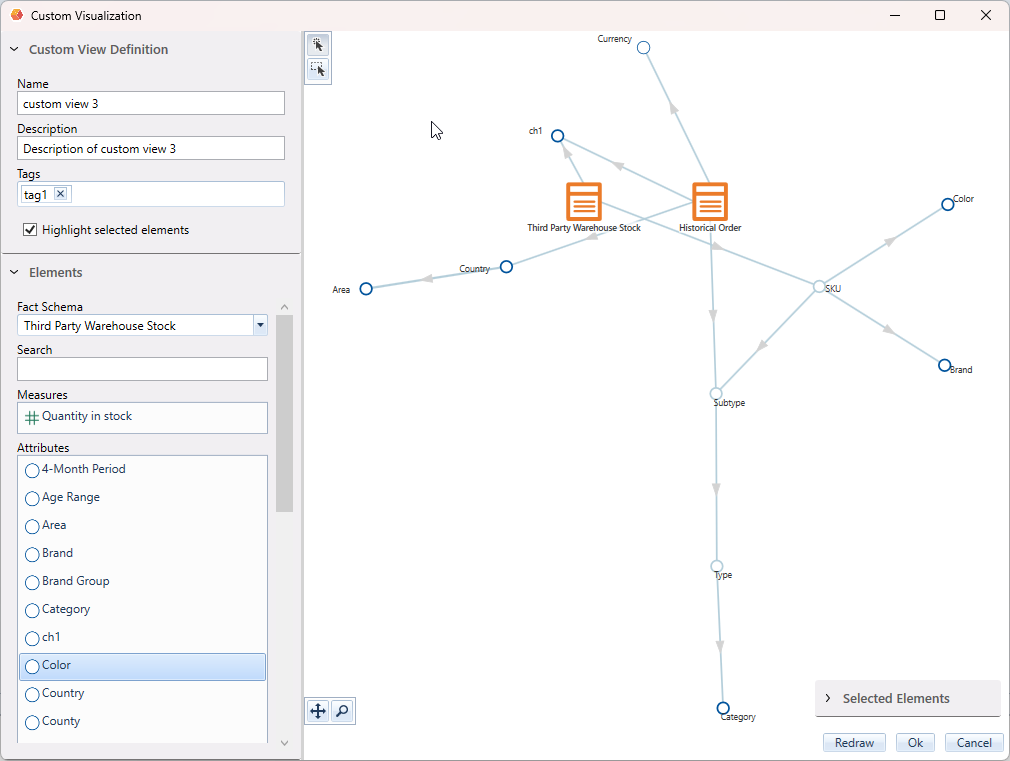
Custom views are a powerful and flexible way to focus on a subset of your model or to highlight relations between elements (facts, dimensions and conformed hierarchies).
They can be generated automatically from your BI Fronted using our API, they can be built by end users directly within indyco Explorer or they can be generated into indyco Builder.
To create a custom view, select "Add new custom visualization..." from the Project view, or from the File > New menu.

A custom visualization editor will appear to:
- edit name, description and tags
- add attributes or measures from your business model to your custom visualization
- add computed attributes and measures
Custom views will be automatically sorted in folders based on the tags you provided. Custom views with no tags will be automatically grouped in a uncategorized folder.
When adding computed attributes or measure to a custom view, you have to specify a formula
| Available since indyco 5.3.0.0 |
Custom views management functions
The following functionalities let you manage existing custom views and the folders that group them. Since folders are generated from tags, actions performed on a folder or on the position of a custom view are reflected in the tags of the custom views involved.
Five functionalities have been added to manage custom views and folders:
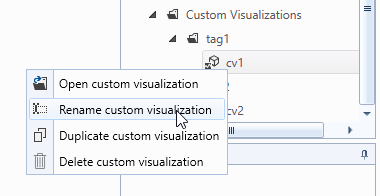
- renaming a custom view,
- duplicating a custom view,
- creating a new custom view from a folder,
- renaming a folder,
- drag and drop.
First two are available from the context menu that appears when you right-click on a custom view:
Third and fourth are accessible from the context menu of folder in the Project view:
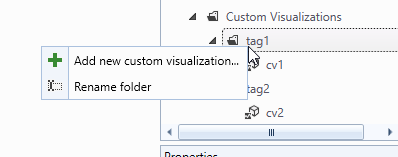
When a new custom view is created from the context menu of a folder, the custom visualization editor will appear with the tag of the folder already filled in. When a folder is renamed, the tag is rewritten on all the custom views that carry it, so that they remain grouped in the renamed folder.
Custom views can also be moved from one folder to another by drag and drop. The tag of the source folder will be replaced with the tag of the destination folder.
Redraw custom views
The elements of a custom view can sometimes overlap. The redraw functionality recalculates the position of the elements so that they no longer overlap.
To redraw a custom view simply open it and click the "Redraw" button at the bottom right.
Before:
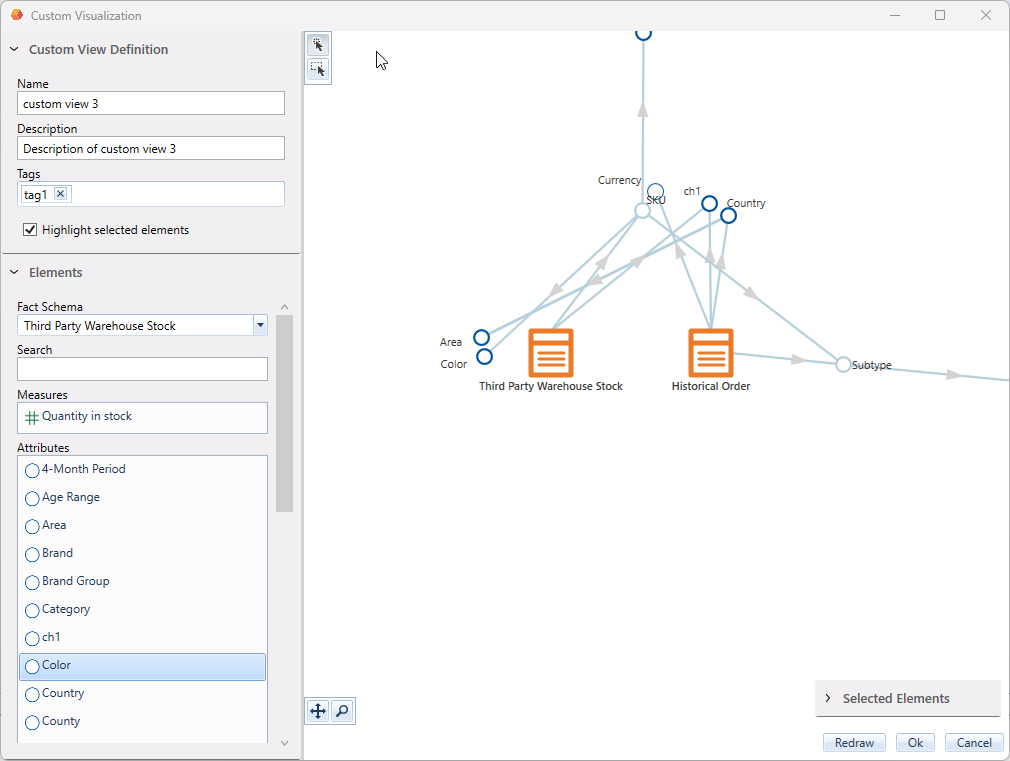
After: