Elements
The viewer represents the schema through: attributes, entities, and relationships.
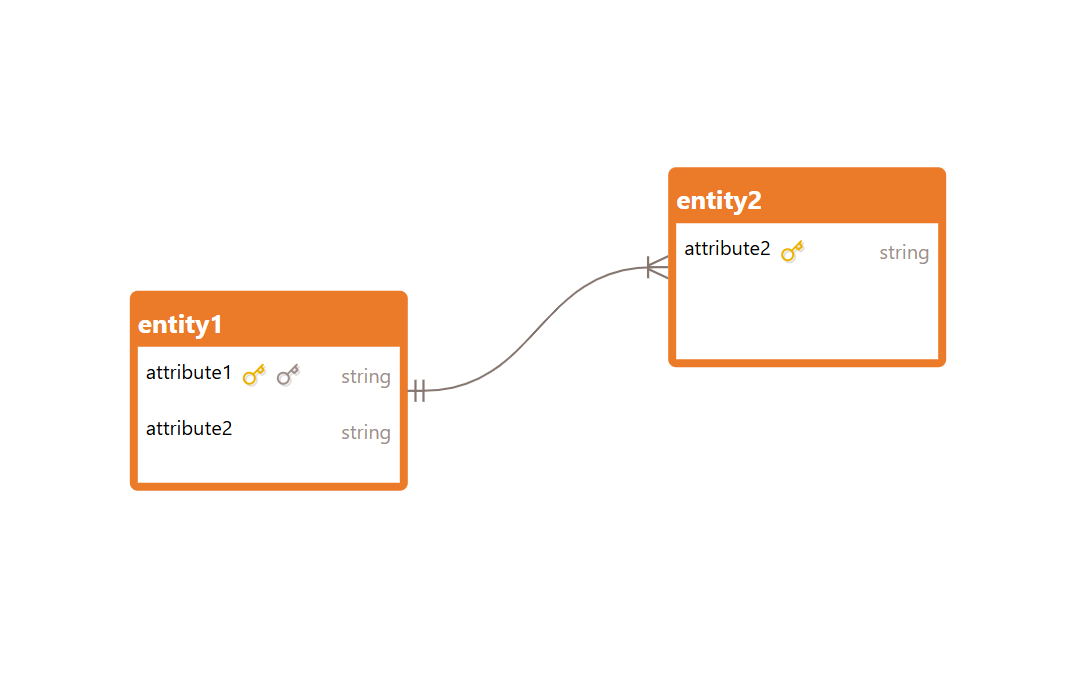
Attributes are the individual fields belonging to an entity. A small key icon may appear next to the attribute name: If an attribute is a primary key (PK), a yellow key icon will be displayed next to it; if an attribute is a foreign key (FK), a grey key icon will be displayed next to it instead.
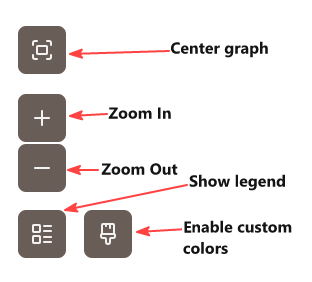
To display a full legend of these symbols, click the Toggle Legend View button.
Entities are the main containers that group related attributes together. By default they are rendered in orange, but the developer may have defined custom colors to help distinguish between different entity types. To enable this color scheme, click the Enable Custom Colors button, identified by a paintbrush icon.
Relationships represent the connections between attributes belonging to different entities. Hovering over a relationship line highlights the involved attributes, making it easy to trace how tables are linked.
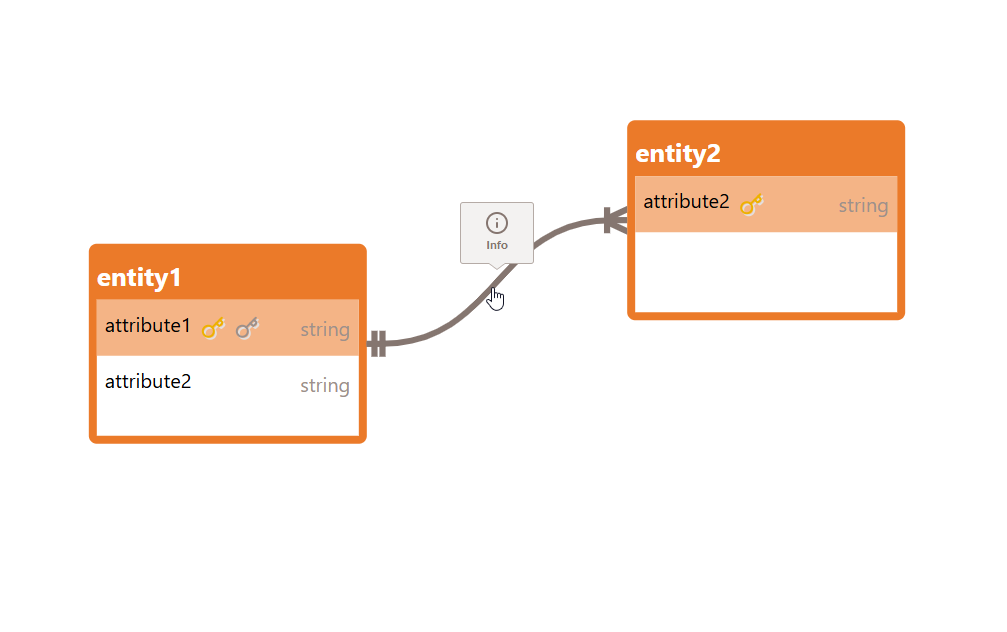
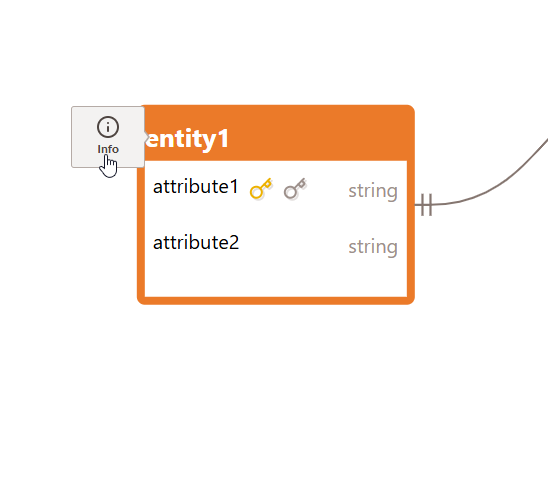
Regardless of the element type, hovering over any attribute, entity, or relationship reveals an Info button. Clicking it opens a detail panel showing all available information for that element, including its name, whether it is a PK or FK (for attributes), the cardinality and involved attributes (for relationships), and any custom properties defined by the developer.
Navigation
The canvas can be explored using the zoom controls located in the bottom-left corner of the screen. Click the zoom in or zoom out buttons to adjust the magnification level, or use the mouse scroll wheel for a quicker alternative.
If you get lost while exploring a large schema, the Center Graph button resets the view and brings the entire diagram back to the center of the screen.
Searching for Elements
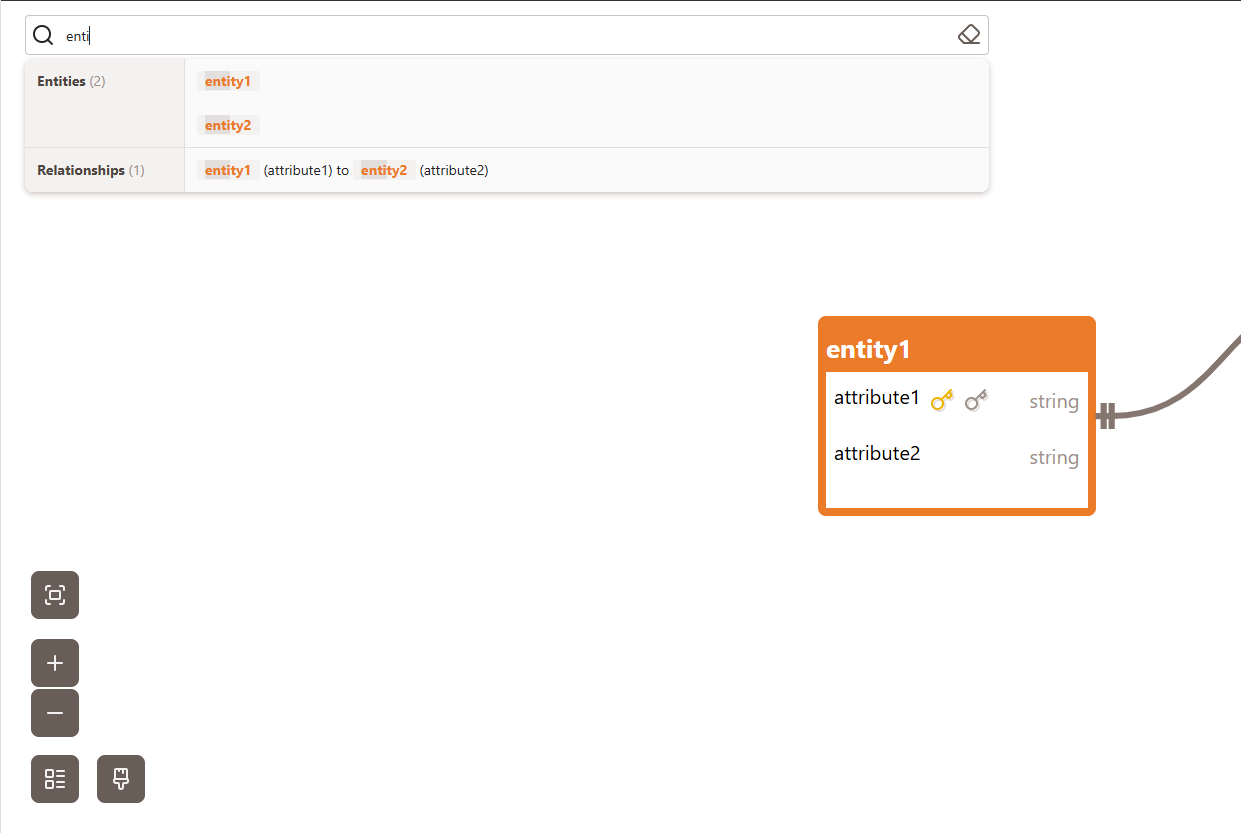
A search bar is available at the top of the screen to quickly locate any element within the schema. As you type, the viewer suggests matching elements in real time. Clicking on a result automatically zooms in to the corresponding element and highlights it on the canvas, so you can find what you need without manually panning through the diagram.